AI in the Terminal - 10x your productivity
Learn how to leverage OpenCode, an open-source AI tool, directly in your terminal to boost productivity and streamline your coding workflow with real-world examples.
Introduction
Tired of context-switching between ChatGPT and your code editor? In this guide, we'll set up OpenCode—an open-source AI tool supporting multiple providers and language models. We'll test it with a real project and see how it eliminates the need for copying between web-based LLMs and your editor. By the end, you'll see how AI can work directly on your code, right in the terminal.
Time to complete: 30-45 minutes
Prerequisites
For the best experience, you need a UNIX-like operating system (Linux or macOS) and a terminal emulator.
You also need some experience in:
- Text editors (like Neovim, Emacs or Nano).
- Git.
- Some LLM experience. Prompting is essential.
- You are familiar with the terminal and basic UNIX commands.
- Some LaTeX knowledge (helpful but not required).
- An API key from your chosen LLM provider (Anthropic, OpenAI, etc.).
🛠️ What Are We Building?
AI Based Generator for Math Homework Handouts
I got this idea while looking at my kid's math homework handouts. She wanted more exercises to make sure she nailed the divisions with two multi-digit numbers. I made some for her manually using LaTeX. While writing the exercises, I started thinking about how much extra time teachers spend making the homework assignments for their classes. AI might prove very useful!
Why LaTeX
To keep it short and concise, LaTeX is great at generating mathematical content! One of the Software Engineering GOATs Donald Knuth created TeX for typesetting mathematics in his book "The Art of Computer Programming". It has been further developed into LaTeX.
Why AI?
Using AI tools can save large amounts of time creating content. It can also help with generating variations of exercises. Teachers can use their skills to specify the desired outcome by crafting prompts, and let AI do the heavy lifting of generating the content. This can free up time for other tasks in a teacher's busy schedule.
Let's get to know OpenCode while building something useful.
💾 Installing OpenCode
First of all, we need to install the utility. Run your favorite Package Manager like apt or pacman if running Linux. If running MacOS like me:
brew install opencode⛽ Setting up the Project Files
To start building the AI Math Homework Handout Project, clone my project from here:
git clone https://github.com/Jihillestad/homework-ai.gitThere are 3 files you need to read carefully to understand the project:
- AGENTS.md: The Master Prompt. It functions like a job description for AI connected to OpenCode.
- example.tex: It functions like a template for how AI should write the LaTeX output files.
- README.md: A sneak peek of what is to come later, as we work our way in. This is generated by prompting in OpenCode mostly. There are only minor manual edits.
🤝 Introducing OpenCode to the Project
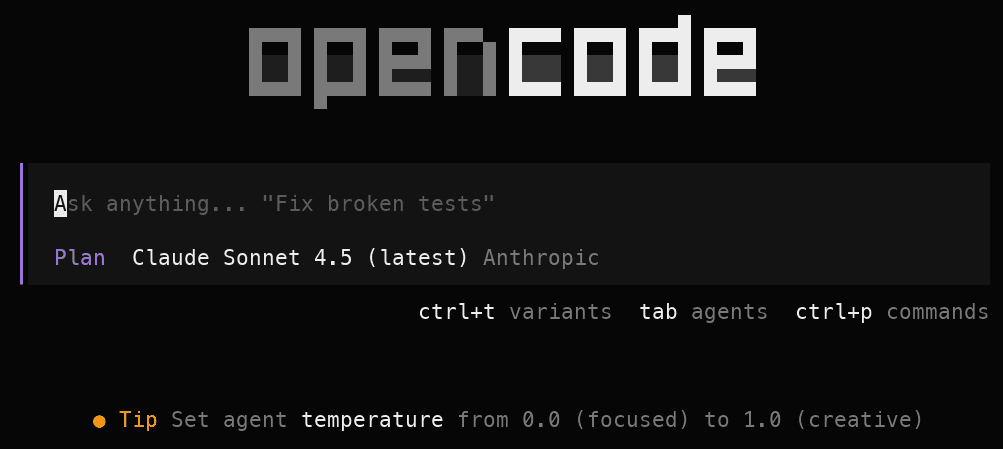
1. Run OpenCode in the Terminal

2. Configure OpenCode
Open the commands menu using ctrl-p and select switch model. Select
your preferred provider and LLM. I use Anthropic Claude Sonnet 4.5 for
my example. You will be prompted to log in to your provider or enter your
API key. Follow the instructions to complete the setup.
3. Introduce OpenCode to the Project
Out of the box, OpenCode has two agents:
- Plan: Used to run prompts for planning and reasoning tasks.
- Build: Used to run prompts for code generation and editing tasks.
Make sure you are in plan mode, write the following prompt for OpenCode to
familiarize itself with the project:
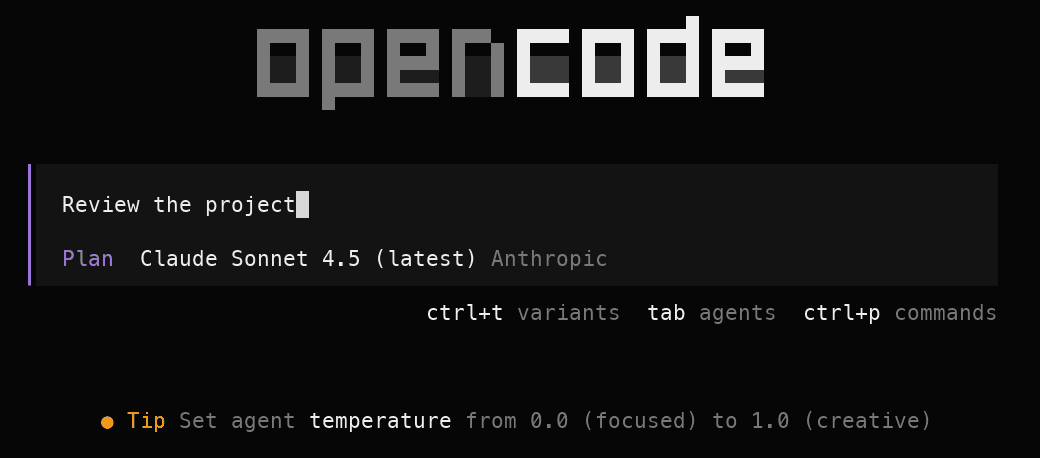
OpenCode will process the files and locate AGENTS.md which is the Master Prompt. Then it goes to work, confirming that it understands the project. If not, we have to improve the Master Prompt.
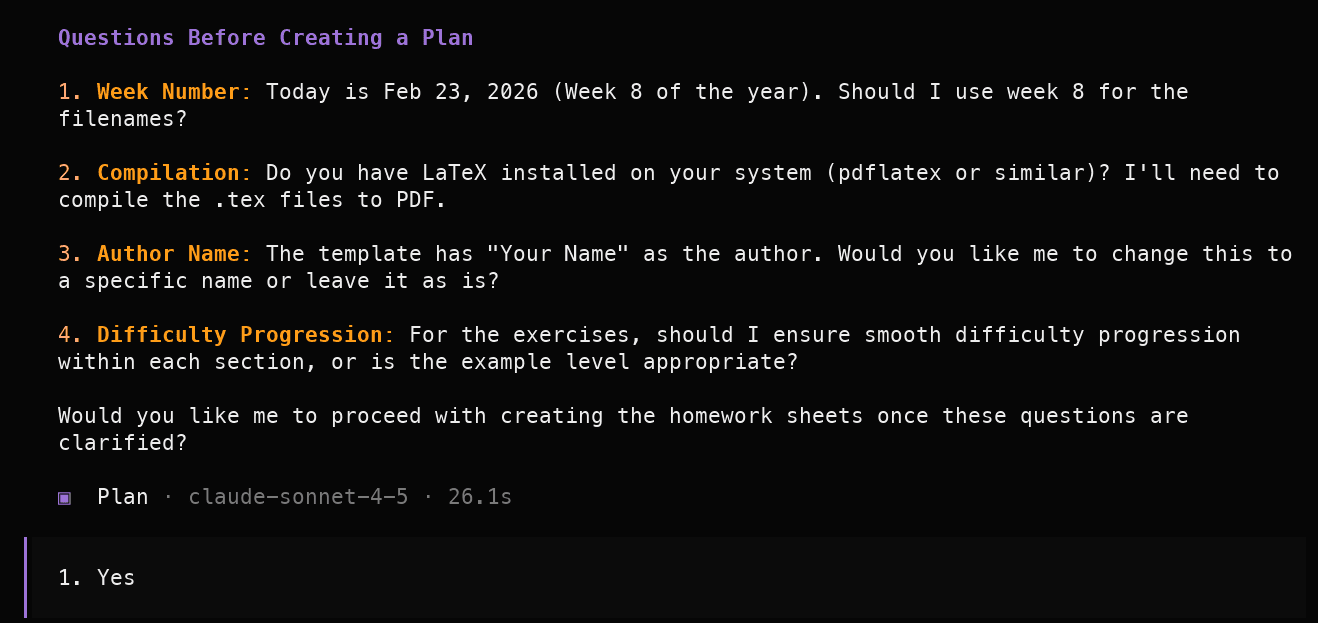
4. Answer Questions from OpenCode.
The code has been reviewed, and OpenCode has questions for us how to proceed. Stay in plan mode and answer the questions:
Question 1:
Question 2:
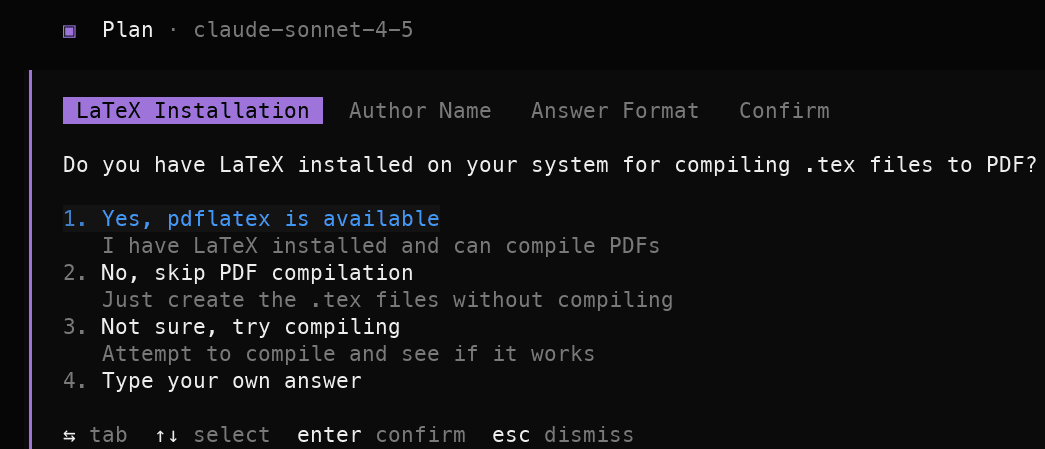
Question 3:
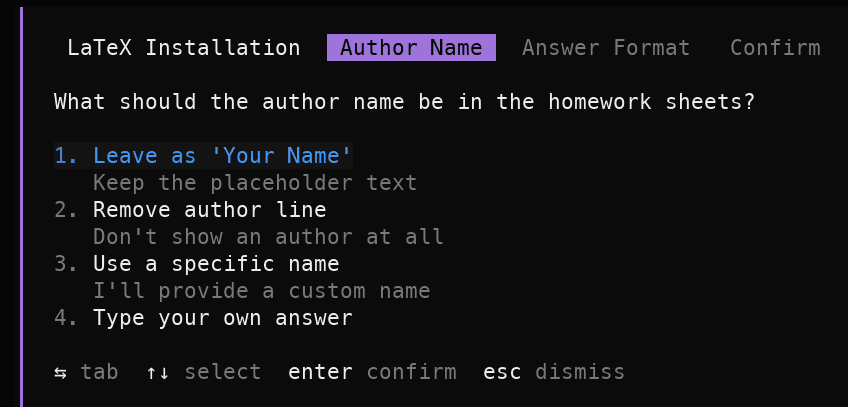
Question 4:
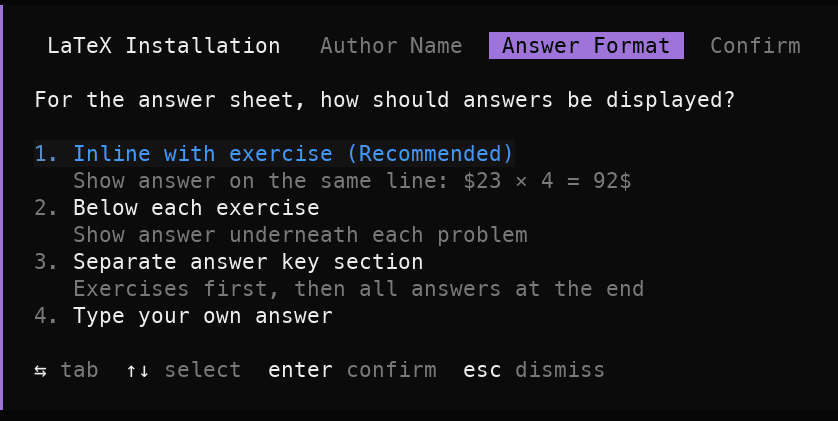
Confirm:
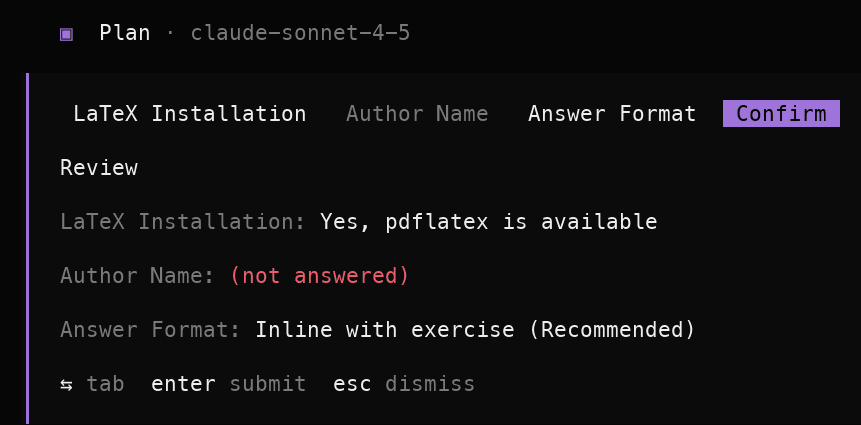
5. Review the Plan
Make sure you understand the plan provided by AI.
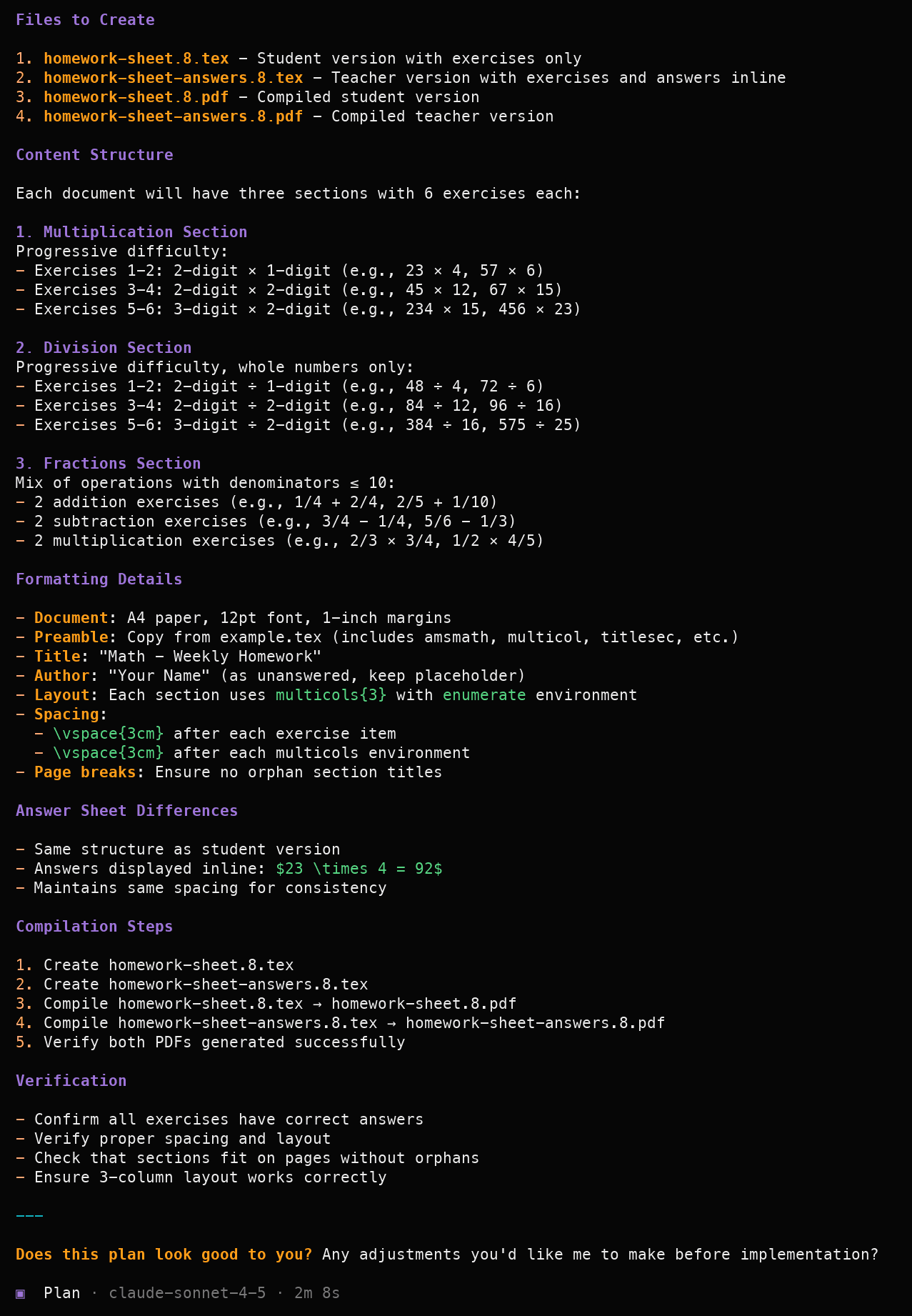
🏗️ Let OpenCode Build the Project
We are now ready to let OpenCode build the project. Switch to build mode and
write yes and the Enter key to confirm that you want OpenCode to build the
project.

✅ Verify the Files
Verify that the following files are present in the project folder:
- homework.sheet.{weeknumber}.tex
- homework.sheet.{weeknumber}.pdf
- homework.sheet.answers{weeknumber}.tex
- homework.sheet.answers{weeknumber}.pdf
Open the files to verify if the outcome is correct. Here is a screenshot of the compiled homework sheet PDF file:

🥳 Bonus, More Fun!
We are going to share this as a project on GitHub. We want to make it available for teachers and parents who want to try it out. We also want to make it available for other AI agents to use as a tool. To do this, we need to present the project in a way that is easy to understand and use. We will use the README.md file for this purpose. We will let AI generate the README.md file. We also should add git to the project, let's see what OpenCode can do for us.
Introducing a sub-Prompt
Let's try making a sub-prompt with checkboxes for multiple tasks named
./tasks/tasks.md.
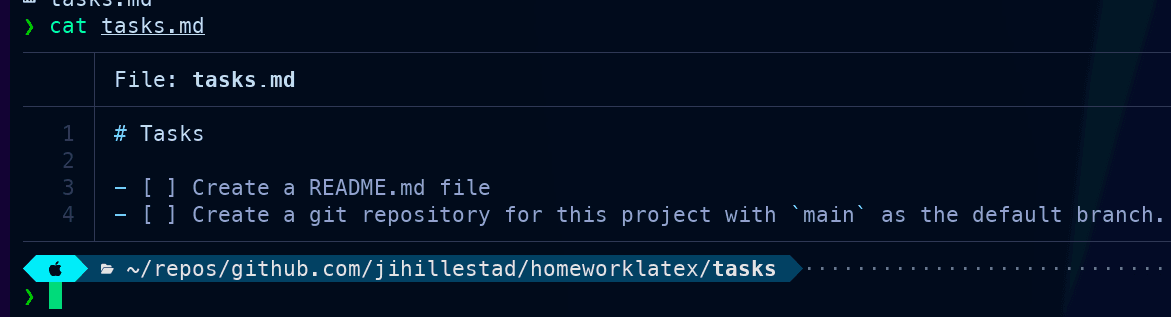
Run the following prompt using the Build Agent:

The result was a README.md file and git was initialized. Amazingly, OpenCode checked the checkboxes. It did not stage the files and commit the changes, we need adding two additional empty tasks and rerun the previous prompt:
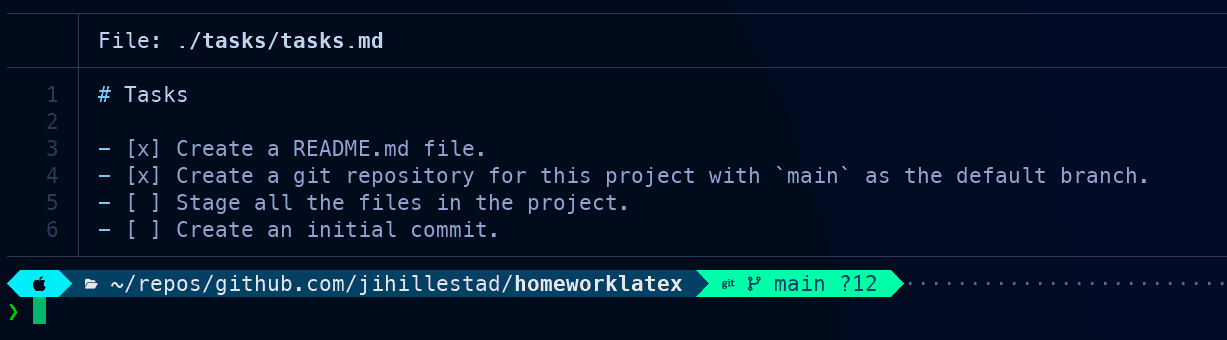
The result was a commit containing all the files, and all the checkboxes were checked. The only changes missing in the commit were the last 2 checkboxes.
🔧 Troubleshooting Common Issues
API Key Problems:
- Ensure your API key is correctly configured for your chosen provider
- Check that the API key has the necessary permissions
- Verify your account has available credits or an active subscription
Model Selection Issues:
- If your preferred model isn't available, check your provider's documentation
- Some models require specific API access tiers
LaTeX Compilation Errors:
- Ensure you have a LaTeX distribution installed (TeX Live, MiKTeX, or MacTeX)
- Check that all required LaTeX packages are installed
- Review the generated .tex files for syntax errors
OpenCode Not Responding:
- Try restarting OpenCode with a fresh session
- Check your internet connection (required for API calls)
- Review token usage limits with your provider
📆 Future Improvements
OpenCode can be used even more efficiently as we get more experienced with it. We can use it to generate more complex code, and we can also use it to generate documentation and tests. We can also use it to generate code for other programming languages. The possibilities are endless!
In this project, configuring the Master Prompt to run sub-prompts containing tasks will make running OpenCode a lot cleaner and requiring less user input. In more advanced projects, running tasks in sub-agents are beneficial to keep token usage under control. LLMs may produce less accurate results when approaching their context window limits.
📝 Summary
In this post, we explored how to leverage OpenCode, a powerful AI tool, in the terminal to boost our productivity and streamline our workflow. We set up OpenCode, introduced it to our project, and let it build a useful tool for generating math homework sheets. We also saw how OpenCode can assist with project management tasks like generating README files and initializing git repositories. By integrating OpenCode into our terminal workflow, we can save time and enhance our efficiency in various tasks.
Try it yourself: Clone the homework-ai repository and experiment with your own prompts. Share your results or questions in the comments below. I'd love to hear about your experience with terminal-based AI tools!
Did you find this helpful, please support me on Ko-fi.com - jihillestad